Check the selection as carefully as the values.
A correct percentage applied to the wrong products is still the wrong edit. The preview brings together the filters, affected products and variants, proposed values and warnings before you confirm.
- Verify the product count and a few recognizable products from the selection.
- Review both price columns when a sale also changes compare-at prices.
- Check more than the first page of a large preview, including variants with existing sale prices.
- Create a new preview if you need different filters or settings. Confirmation uses the saved selection.
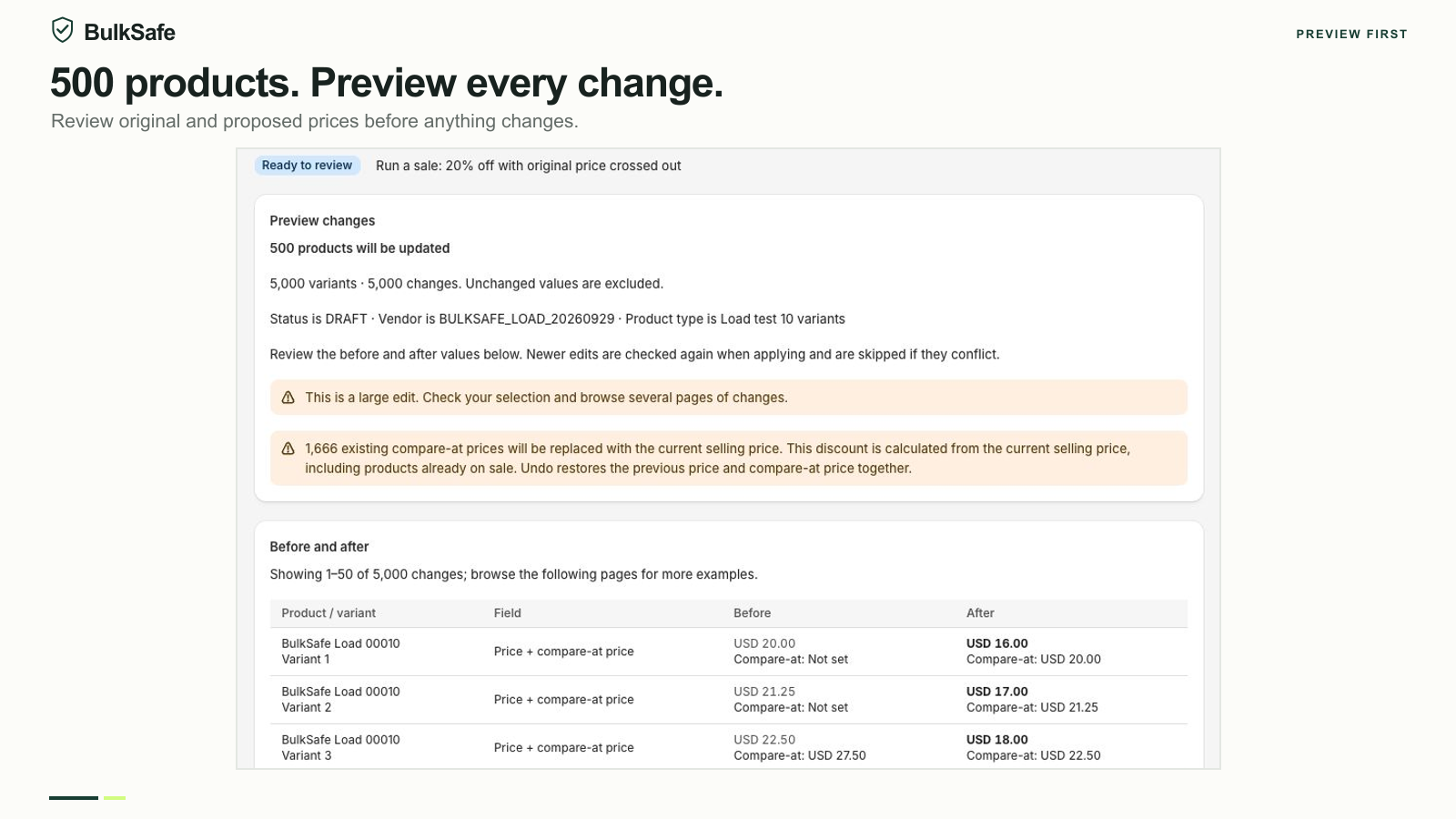
See the bulk price editing workflow for choosing an adjustment and reviewing its effect.
Undo a confirmed edit from its history.
- Open History. Find the original operation by its name and open the result.
- Review what actually changed. Successful changes may coexist with skipped or failed items. Undo applies to confirmed saved changes.
- Choose Undo changes. Read the restoration information and confirm when you want to restore the original values.
- Inspect the restoration result. Review restored, skipped and failed items, then check any unresolved values directly in Shopify.
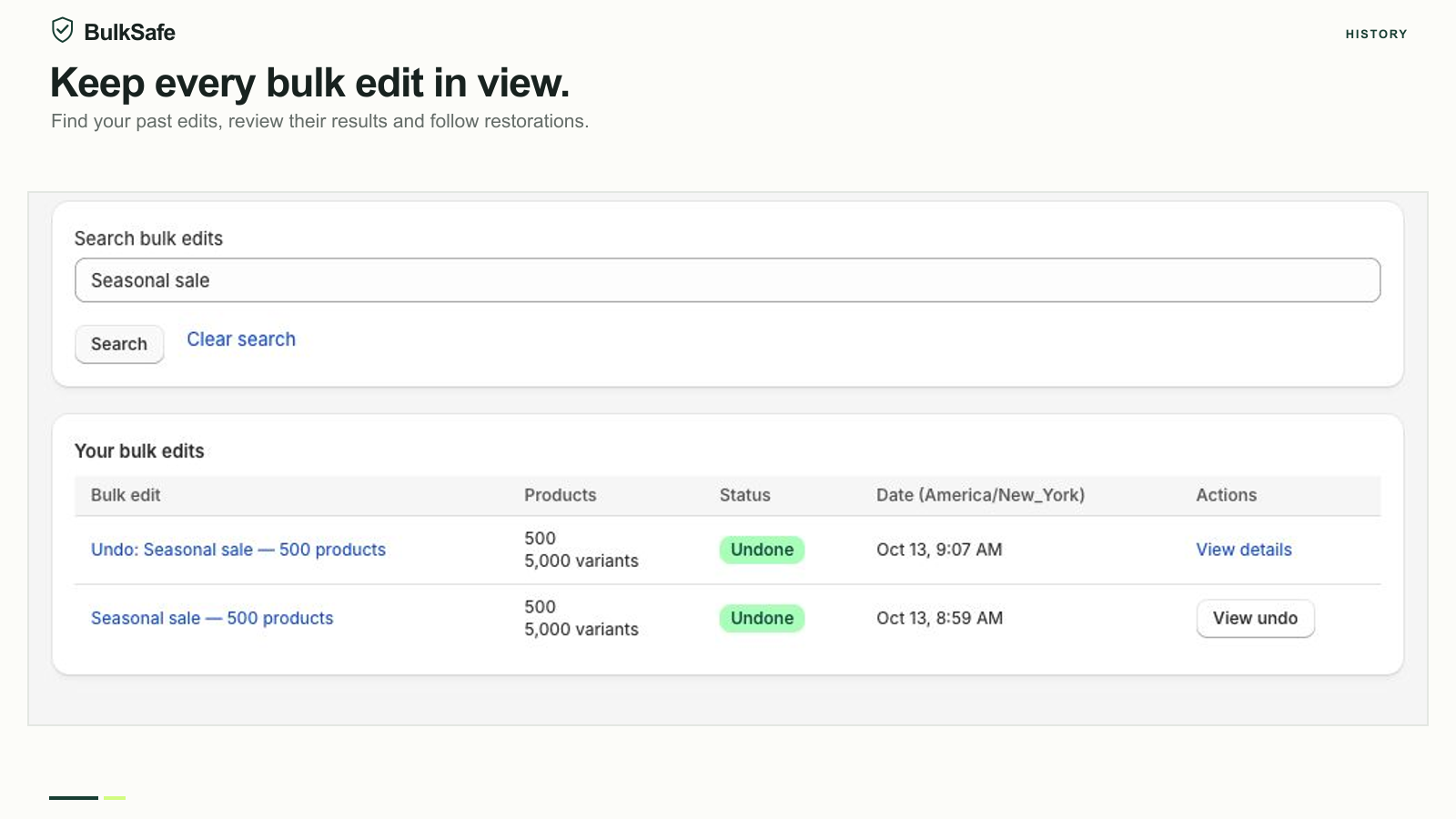
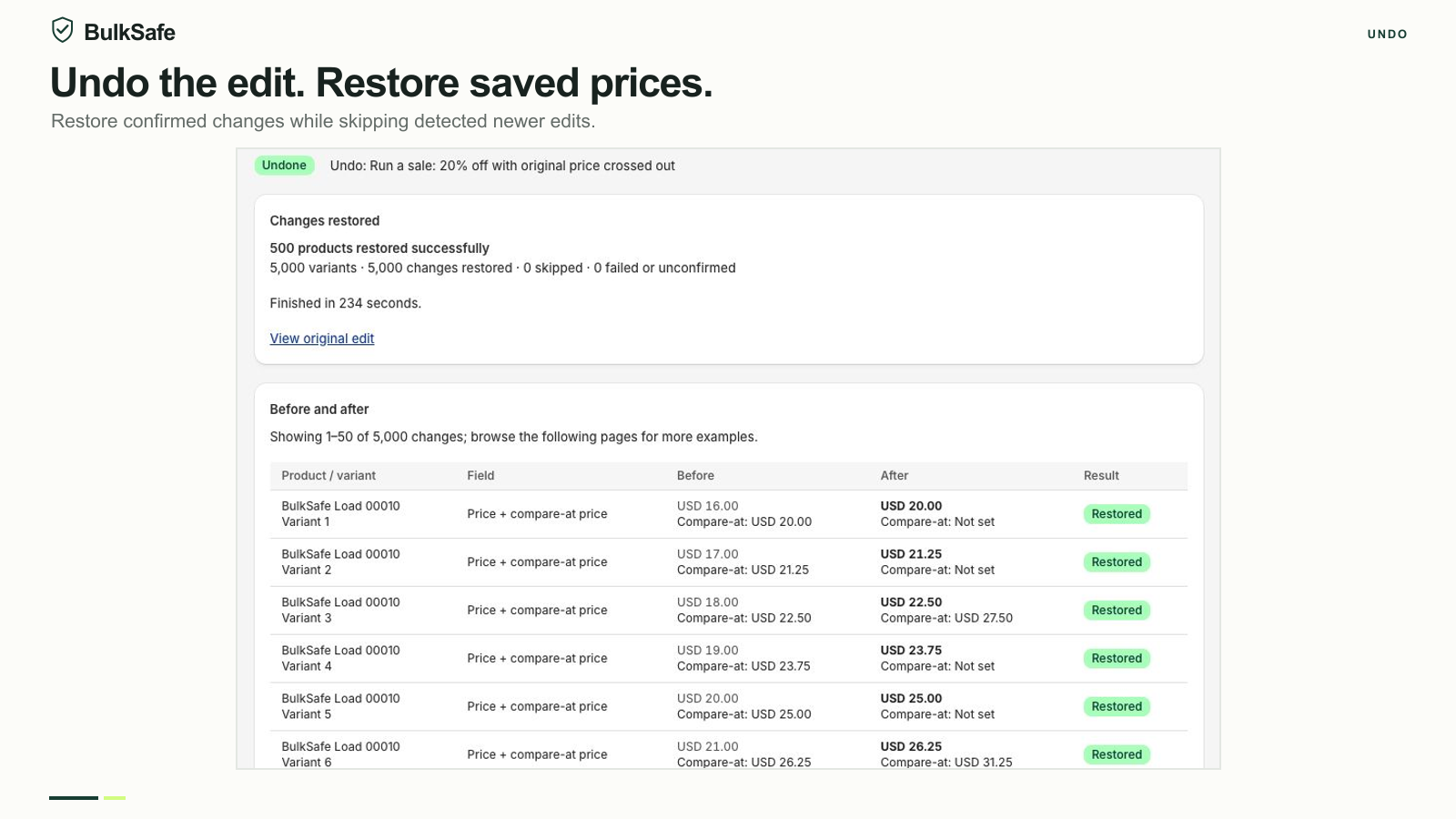
Manual undo is included on every plan. For a sale that changes both price fields, the saved selling and compare-at values are restored together. Pro also includes scheduled automatic restoration; compare plan features before planning your promotion.
Why a restoration can skip an item.
Restoring an old value should not silently replace a newer edit that BulkSafe detects. The restoration checks the current value against the value the operation applied, and reports items it cannot safely restore.
Scroll sideways to see every column.
| Situation at undo | Expected handling | Your next step |
|---|---|---|
| Price still $48 | Restore saved $60 if the write succeeds | Check the restoration result |
| Another edit changed it to $45 | Skip the detected conflict | Decide which value is now correct in Shopify |
| Product or variant was deleted | Cannot restore that item | Review the deleted resource separately |
| Original change was not confirmed | No confirmed change to undo | Check the current value in Shopify |
If an operation only partly completed, do not assume nothing changed. Review the successful and unresolved items separately. Contact support with the operation reference if the outcome is unclear.
Undo is recovery for saved edits, not a store backup.
BulkSafe cannot restore arbitrary changes made before it recorded them, recover deleted products, or reverse unrelated edits by other apps. It needs the saved history of a confirmed change. Keep independent backups where your workflow requires them.
Uninstalling does not reverse changes already applied. It stops pending operations and automatic restorations, and you lose the ability to run undo through the uninstalled app. Restore any changes you want to reverse before uninstalling.
A scheduled restoration is not a guarantee of exact-time completion. Catalog size and Shopify availability affect execution. Leave time to verify the result, especially at the end of a promotion. Read the sale setup guide for checks before and after a price change.
Try a small edit first.
Start with the free plan. Review your preview, apply the change and find the result in History.
Install on Shopify Need help? Contact support