Understand the two fields before changing them.
Scroll sideways to see every column.
| Price | Compare-at price | Meaning |
|---|---|---|
| $48 | $60 | A lower selling price with a higher reference value |
| $48 | Not set | A selling price without a compare-at reference |
| $48 | $40 | Reference is below the selling price; review the values |
| $60 | $60 | No difference between selling and reference prices |
A compare-at value should be higher than the selling price for a sale comparison. The theme controls how it appears, and market pricing can change the outcome. Setting these catalog fields does not create a discount code or an automatic checkout discount. See Shopify guidance on sale prices.
Decide the intended selling price and reference value before editing. Do not assume an existing compare-at price is the price currently charged. BulkSafe calculates a sale reduction from the current selling price.
For a small edit, use the Shopify product page.
Open the product in Shopify admin, select the variant if applicable, and edit its Price and Compare-at price fields. Save and inspect the product on your storefront. For several products, Shopify also provides a bulk editor where these fields can be edited together.
This can be sufficient for a small selection. If you want a percentage-based change with a saved preview and restoration history, the following BulkSafe workflow lets you review both fields before applying. The bulk price editor page covers the available adjustments.
Preview a bulk sale with BulkSafe.
- Choose Run a sale. Select the products using filters or individual selection. Check the product and variant counts.
- Set the reduction. Choose a percentage or fixed amount. For this example, use 20% off the current selling price.
- Choose whether to show the original price crossed out. Enabling this option sets compare-at to the pre-sale selling price, replacing any existing compare-at value.
- Preview both fields. Read warnings and inspect variants with and without existing compare-at prices.
- Apply and review the result. Inspect the actual changed variants and a storefront product before considering the promotion ready.
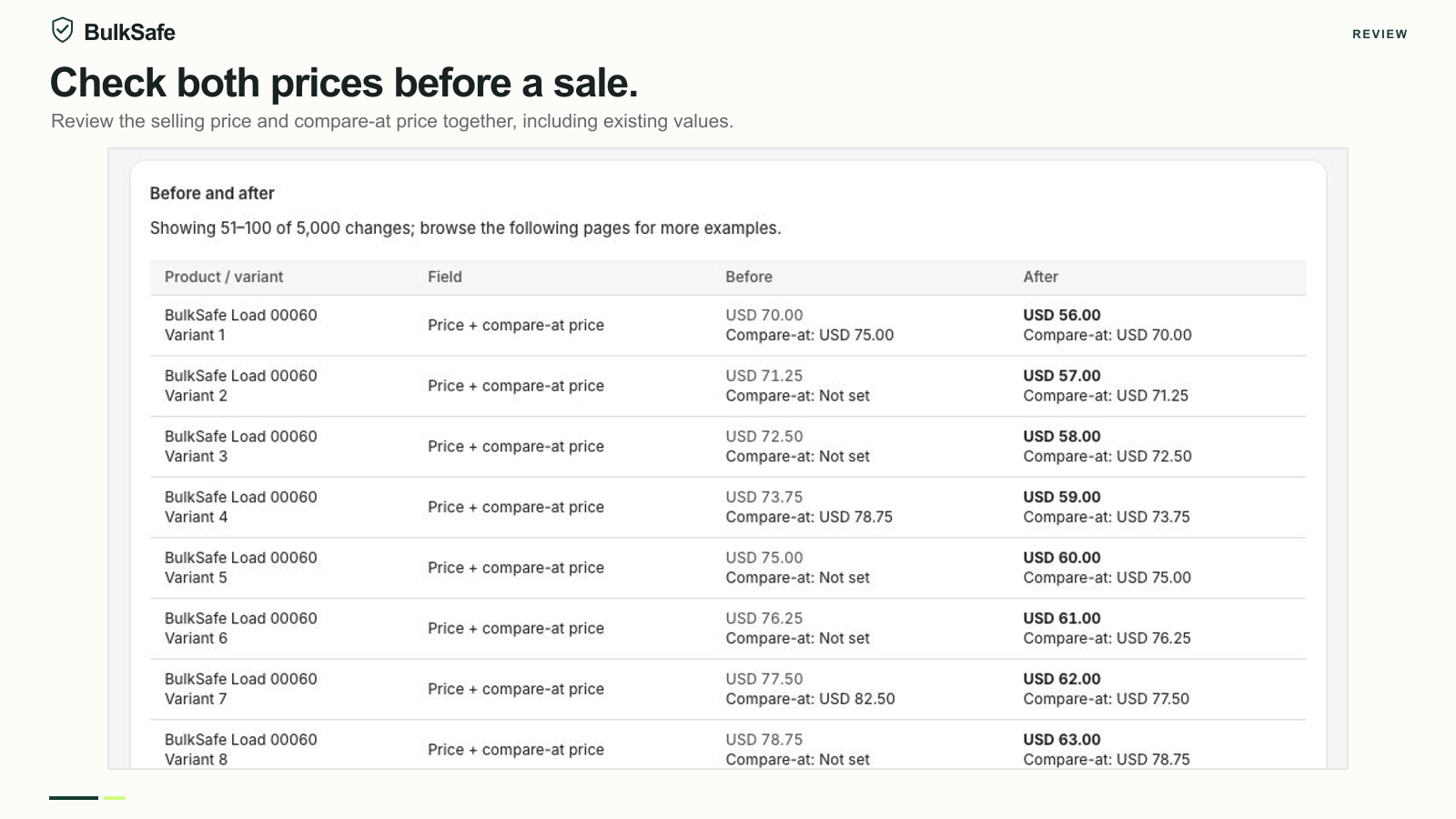
Scroll sideways to see every column.
| Stage | Selling price | Compare-at price |
|---|---|---|
| Before the sale | $70 | $75 |
| After applying 20% off with original price shown | $56 | $70 |
| After successful undo with no conflict | $70 | $75 |
To edit only compare-at prices, use the compare-at price action instead. To remove an unwanted reference, use Clear compare-at price and review the preview. A zero value and an empty field are different; do not use zero as a substitute for clearing the field.
Check the storefront, then plan the end of the sale.
If the expected crossed-out price is missing, check the variant values in Shopify first, then the theme and the applicable market. Different variants can have different price pairs; inspect more than the initially selected variant. Shopify describes common display issues in its sale-price troubleshooting guide.
BulkSafe edits store base-currency prices, not separate Markets price lists. It does not change your theme or guarantee a particular sale badge. Repeatedly applying a reduction to fix a display issue could reduce prices again without solving that issue.
When the promotion ends, open the original edit in History and review how manual undo handles saved values and conflicts. Pro includes scheduled automatic restoration; all plans include manual undo. Check the plan comparison and allow time to inspect the result.
Restore wanted values before uninstalling. Pending automatic restorations stop when the app is removed. If an operation only partly completed, review individual outcomes or contact support before applying another operation.
Try a small edit first.
Start with the free plan. Review your preview, apply the change and find the result in History.
Install on Shopify Need help? Contact support